 Cashom
A place for every expense
Create categories and subcategories, find them as you type and edit any record.
Manage household spending on your PC with categories, budgets and charts. Cashom works on Windows 10 and 11, stores your records locally and does not require a bank connection.
Windows 10 and 11 · No bank connection
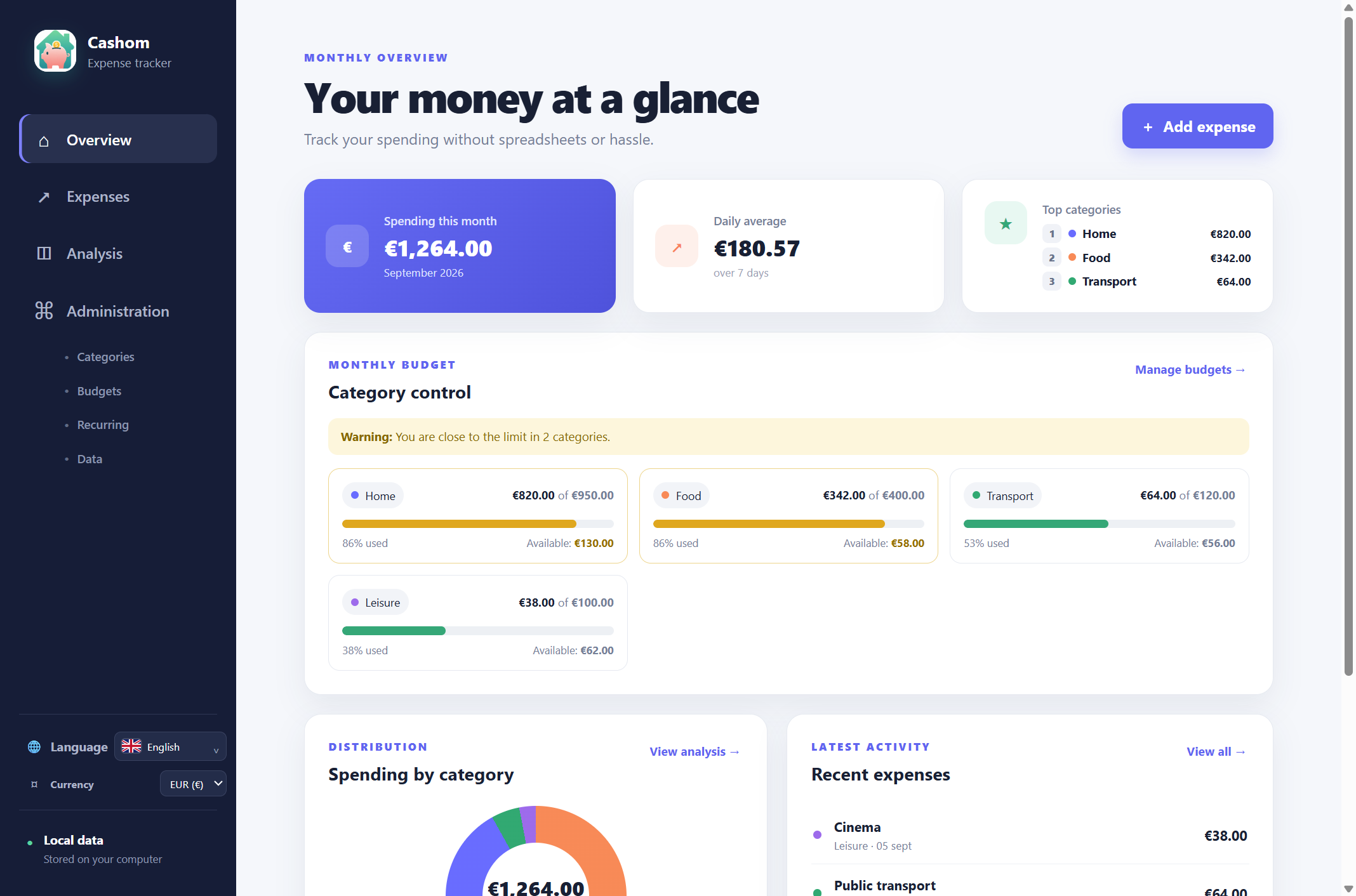
Real Cashom screenshot. Amounts and categories are demonstration data.
The essentials for personal expense tracking, without the complication.
Create categories and subcategories, find them as you type and edit any record.
Set optional monthly limits. Get a warning at 80% and an alert when you reach or exceed the limit.
Set up rent, subscriptions and other recurring costs. On opening, Cashom adds any missing entries for the current month.
Attach an optional photo, view it inside the app and download it whenever you need it.
Import records from CSV or export only the expenses visible after filtering.
Spanish, English, German, French and Italian. Choose euros, dollars or pounds as your display currency.
Compare any month range you choose. Explore categories and subcategories, spot your biggest expenses and see how they change over time.
View full screenshot ↗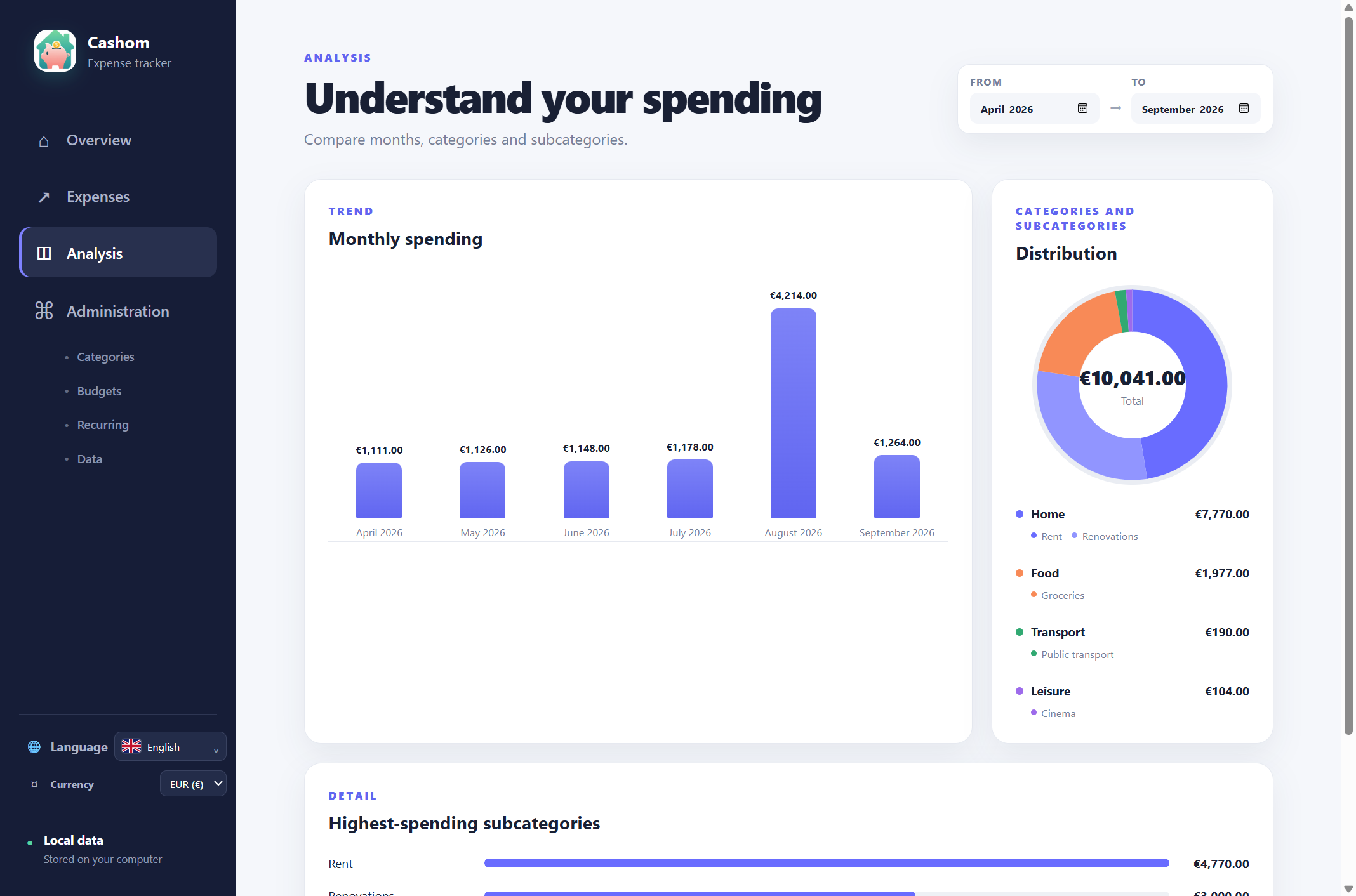
Cashom stores expenses and photos in a local folder you choose. No access to your bank accounts and no Cashom server to upload your spending history to.
If you choose a folder synced by OneDrive, OneDrive handles the syncing. Cashom keeps working with local files.
Separate rent, renovations, food and transport in Cashom. Use subcategories to understand household spending on your Windows PC.
Set category budgets, use monthly exceptions and review spending warnings with Cashom for Windows, without spreadsheet formulas.
Understand local expense tracking in Cashom: no bank credentials, CSV imports, data backups and the limits of offline Store licensing.
Expense tracking works locally. The Store edition checks its license and can use the one cached by Windows offline. Acquisition, first activation or license renewal may require Internet access.
No. You add expenses or import them from CSV. You do not need to provide banking credentials.
Installation follows your license and Microsoft Store rules. Cashom does not sync or merge records between devices. With OneDrive, wait for syncing to finish and avoid editing the same folder on two computers at once.
No. EUR, USD and GBP change the displayed unit and formatting. Cashom does not apply exchange rates.
Cashom is a paid app available from Microsoft Store. Check the Store for the current price in your currency before purchasing.
Look for categories, spending limits, data export and a clear storage policy. Cashom suits people who prefer manual entry or CSV imports rather than automatic bank connections.
Yes. Set category limits and compare household expenses against them without spreadsheet formulas. Cashom does not provide shared accounts or simultaneous family editing.
In a local folder configurable under Administration → Data, alongside attached photos. You can back up that folder. Cashom does not upload your history to its servers or encrypt the files itself.
Your next good habit starts with one expense recorded.